Adding Voxinly to Wix, Squarespace, Webflow and Shopify
One guide, four platforms. Step-by-step instructions for adding Voxinly to your website regardless of which builder you use, with screenshots and gotchas.

Before any of these, grab your one-line snippet from voxinly.com/admin/embed. The instructions below all assume you've copied it to your clipboard.
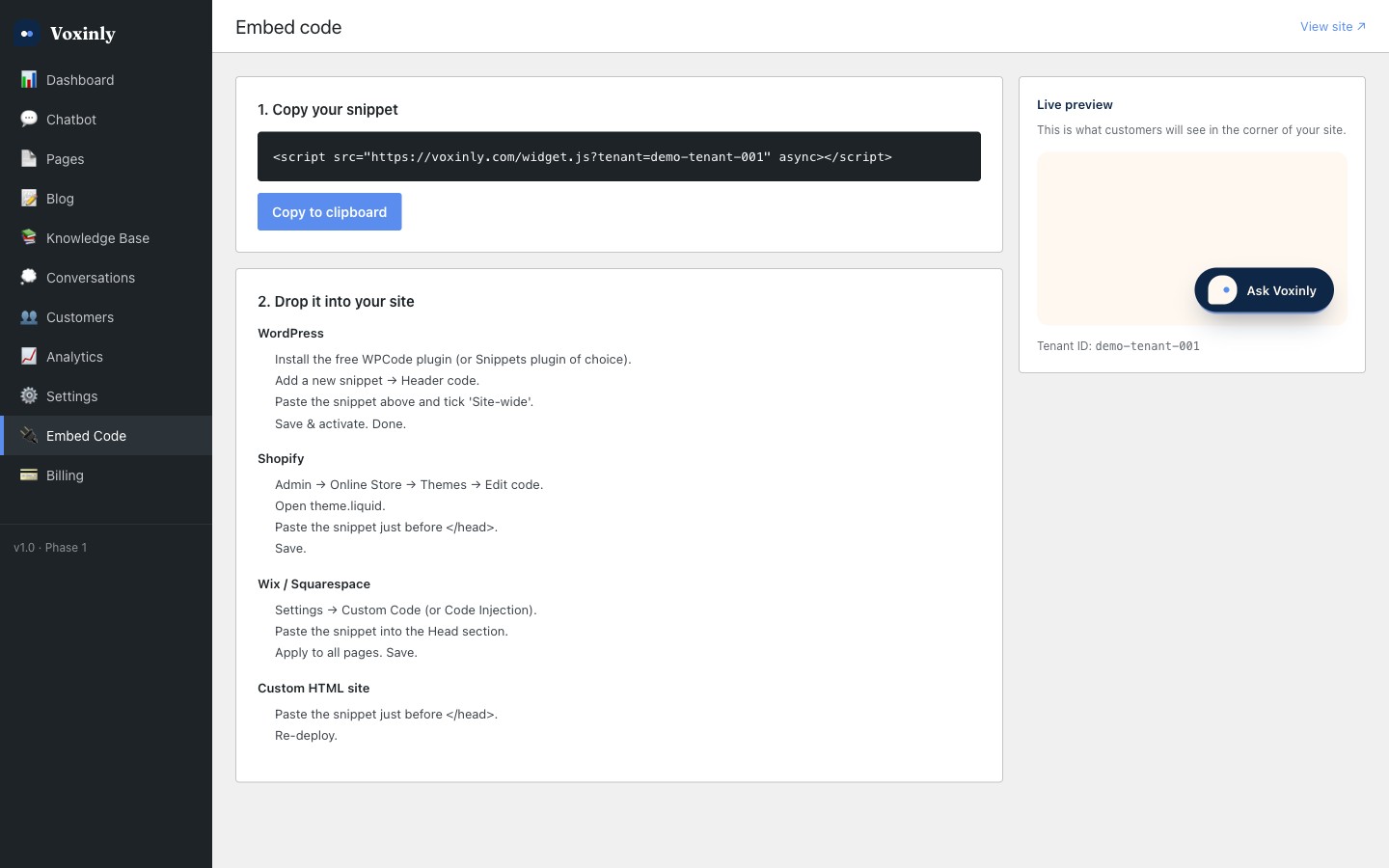
Wix
- From your Wix dashboard, click Settings in the left sidebar
- Under Advanced, click Custom Code
- Click '+ Add Custom Code' in the top-right
- Paste your Voxinly snippet into the 'Paste the code snippet here' field
- Name it 'Voxinly chatbot' so you recognise it later
- Add Code to Pages: All pages
- Place Code in: Head
- Click Apply
Squarespace
- In your Squarespace dashboard, click Settings
- Click Advanced (near the bottom of the left sidebar)
- Click Code Injection
- Paste your Voxinly snippet into the Header field
- Click Save in the top-left
Webflow
- From your Webflow dashboard, open your project
- Click the gear icon (Project Settings) in the top-left
- Click the Custom Code tab
- Paste your Voxinly snippet into the 'Head Code' box (not 'Footer Code')
- Click Save Changes
- Click Publish (top-right) → Publish to your live domain
Shopify
Shopify is slightly fiddlier because you edit the theme file directly, but it's still a 2-minute job.
- Shopify admin → Online Store → Themes
- Find your current live theme. Click the three-dot menu (•••) → Edit code
- In the Layout folder on the left, click theme.liquid
- Use Cmd+F (Mac) or Ctrl+F (Windows) to find </head>
- Click on the line just before </head>
- Paste your Voxinly snippet on its own line
- Click Save in the top-right
Testing on all platforms
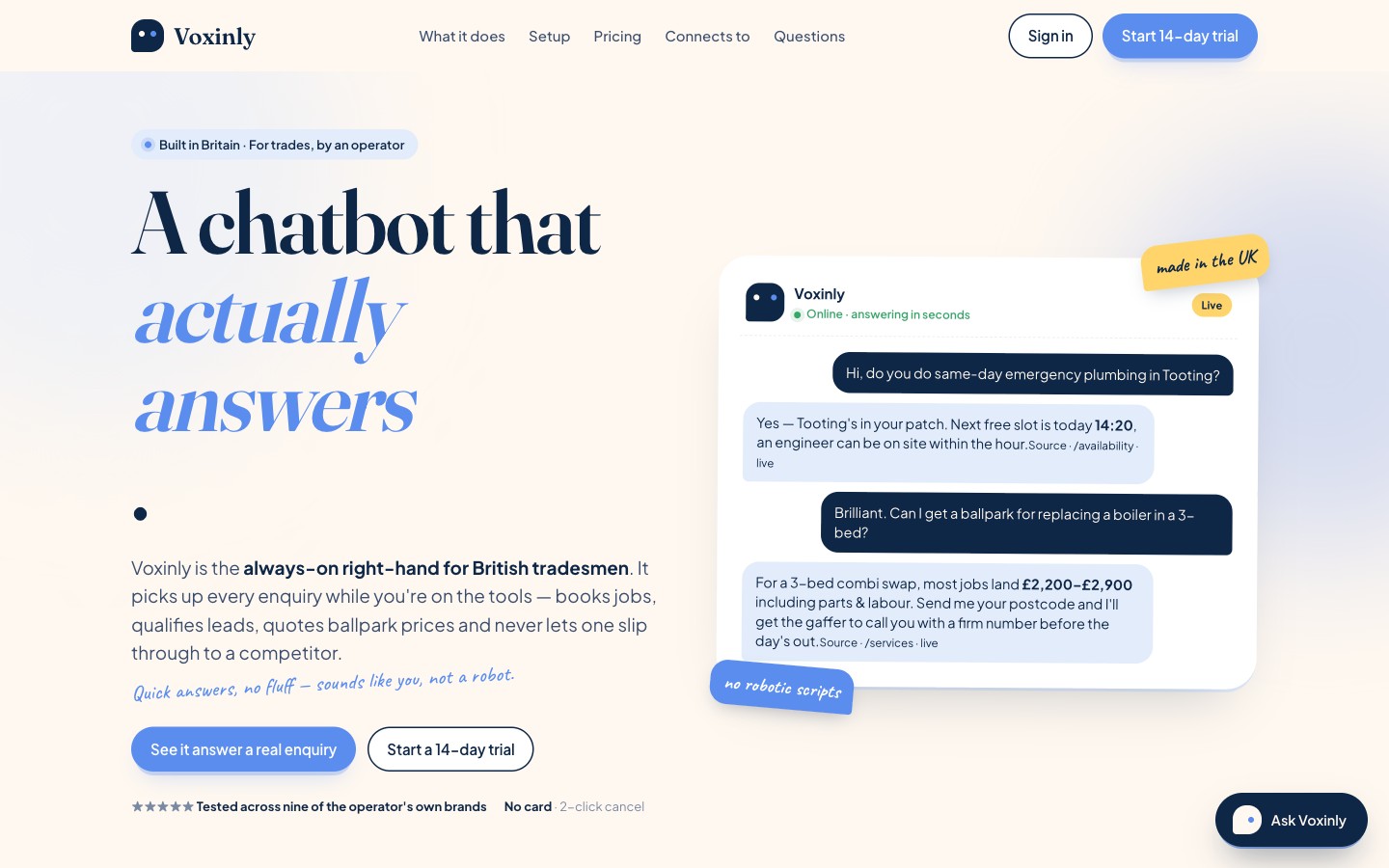
After save (and publish, for Webflow), open your live site in a private browser window. The Voxinly chat bubble should appear in the bottom-right corner within a second of page load. Click it and ask a question — you should get an answer that uses your starter knowledge.
Common gotchas
Widget appears on one page but not another
On Wix, double-check Apply to all pages is selected. On Shopify, the widget is in theme.liquid which renders on every page — but if you've got page-specific layouts using alternate templates, the snippet might not be in those. Add it to each layout file.
The widget shows up after a delay
Voxinly loads asynchronously by design so it never slows your page. On slower mobile connections you might see a half-second gap before the bubble appears. That's intentional.
My ecommerce conversion tracking is breaking
It isn't Voxinly's doing — our script is isolated and doesn't touch your analytics. If you're seeing a problem after installing Voxinly, you've probably also installed something else that day. Remove Voxinly first to confirm, then re-add.